




















2 Logo Lessons: Printing Basics 101
Understanding printing basics can save your business time and money. Learn why vector logos matter, how CMYK affects colour accuracy, and how to avoid pixelated prints with real-world examples.

Printing Basics: Pixel vs Vector Logos (And Why It Matters for Your Business)
Understanding printing basics is essential for any business that wants professional, high-quality signage and marketing materials. One of the most common — and costly — mistakes we see is businesses supplying the wrong type of logo file for print.
Your logo isn’t just a visual element. It represents your brand value, credibility, and professionalism. Yet many businesses don’t realise that the logo file that looks perfect on screen can completely fall apart when printed at scale.
In this printing basics guide, we’ll explain the difference between pixel (raster) and vector logos, why it matters for wide-format printing, and share a real-world example from our production floor.
Printing Basics: What Is a Vector Logo?
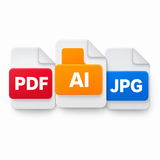
A vector logo is typically supplied as a file such as .AI, .EPS, or .PDF. These files are created using mathematical paths rather than pixels. From a printing basics perspective, this is critical.
Because vector files are built using linear mathematics, they can be scaled to any size without losing quality — whether that’s a business card or a 3-metre banner.
Why vector logos are essential for printing:
- They scale infinitely without blurring
- They produce crisp edges at any size
- They contain CMYK colour information
- They are ideal for wide-format printing, signage, and merchandise
If you plan to print anything larger than a photograph, printing basics rule #1 is simple: always use a vector logo.

Printing Basics: What Is a Pixel (Raster) Logo?
Pixel-based logos — also known as raster or bitmap files — include formats like .JPG, .PNG, or .GIF. These files are made up of fixed pixels at a specific resolution.
From a printing basics standpoint, pixel logos are fine for screens but risky for print.
Common issues with pixel logos:
- They blur or pixelate when enlarged
- Resolution is fixed and cannot be increased
- They are usually created in RGB colour mode
- They often fail quality checks for signage printing
A logo that looks sharp on a website or email signature can look visibly pixelated when printed at full size.
Real Case Study: Bayside Tutoring Logo Redraw
We regularly receive artwork that needs to be redrawn because the supplied logo isn’t suitable for print. One recent example was Bayside Tutoring, who supplied a low-resolution PNG logo.
On screen, the logo looked perfectly fine. However, when scaled up for an end sign flag, the logo became visibly pixelated — something that would have been immediately noticeable once printed.
As part of our printing basics review process:
- We flagged the issue before production
- Redrew the logo as a clean vector file
- Matched the original colours as closely as possible in CMYK
- Supplied the client with a copy of their new vector logo for future use
The final printed flag looked sharp, professional, and brand-accurate — exactly what wide-format signage should be.


Printing Basics: CMYK vs RGB (Why Colours Change in Print)
Another key printing basics concept is understanding colour modes.
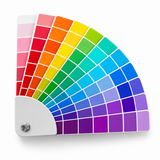
Screens use RGB (Red, Green, Blue) to create colour through light. Printers, however, use CMYK (Cyan, Magenta, Yellow, Black) inks.
There are no commercial printers that print using RGB inks.
Why this matters:
- RGB colours can appear brighter on screen
- RGB files often shift colour when printed
- Vector logos store CMYK values accurately
- Pixel logos often rely on RGB, causing colour mismatch
Printing basics rule #2: Always supply artwork in CMYK to ensure colour accuracy in print.

Our Free Artwork Review (Before Anything Goes to Print)
As part of our workflow, we offer a free artwork review on all submitted files. This is a critical step in applying printing basics correctly and avoiding expensive mistakes.
Our review checks:
- File resolution
- Correct logo format (vector vs pixel)
- Colour mode (CMYK vs RGB)
- Bleed, sizing, and print setup
⚠️ Please note: This review does not include grammar, spelling, or content changes — it focuses purely on print quality and setup.
If something isn’t right, we’ll flag it before production, not after.
Printing Basics: Final Takeaways
- Always keep a vector version of your logo
- Avoid using low-resolution PNGs or JPGs for large prints
- Use CMYK colour mode for all print artwork
- Don’t rely on how files look on screen
- A proper artwork check can save time, money, and reprints
If you ever need help converting a pixel logo to a print-ready vector file, our team can redraw it and ensure it’s suitable for all future printing.


